No matching section
Try a shorter term such as card, stock, printer or Back Office.
Full till and settings backups
For Android 2.036 or later, open Back Office > Backups, select the business location, then choose Back up everything and download beside the till. Keep it online with the main till screen open. Capture waits for active operations to finish and briefly pauses new actions while recording a consistent copy. The encrypted JSON download is offered after upload completes; the screen shows its capture date and coverage.
A full archive includes the till's stored sales and receipts, open and stored bills, pending payment and refund references, stock, bookings, attendance, reports, available error reports and diagnostics, menus, PLUs, staff, sign-on codes, full saved settings, card-provider configuration, printer assets, preferences and saved app files. It records data at capture time; later trading and unsaved screen entries are not included. Android-protected keys cannot be moved between devices, and permissions, device pairing and external payment-provider sessions may require setup or reauthorisation.
Keep the file securely: it contains sensitive business and payment configuration. Its contents are encrypted, and the original Back Office encryption key is required for recovery. Upload completion confirms transfer integrity. The controlled recovery process must separately validate the archive and extract it into a new staging location before any decision to replace live data. Full recovery is not an automatic live restore. Do not roll a trading till back to an earlier archive or retry a pending payment as a new payment; check its original payment reference first.
Download saved backup retrieves the current saved file. Previous completed full archives remain available in the full-backup history, including when a newer settings-only capture becomes the current backup. Capture fails with an explanation if required data cannot be read, changes during capture or exceeds the limits; it does not silently omit it. Limits are 256 MiB for the archive and its expanded JSON, and 16 MiB for an individual file or database value.
Settings-only backup and restore
Android 2.017 or later supports Settings-only backup. This includes preferences, staff, sign-on codes, PLUs, groups, add-ons, options, menu screens/buttons, refund reasons, order locations, printer configuration and local logos, receipt text, floorplans/backgrounds and card-provider configuration. It excludes sales, open bills, payment recovery, attendance and current stock balances. Automatic backups requested by remote updates remain settings-only; request a full archive separately when needed.
Choose Restore settings-only file… for the original till, select its settings file and confirm. Files from another till/location, altered files and backups from a newer app version are rejected. A restore waits until bills and the till session are closed and pending payments/refunds are resolved. A fresh recovery copy is saved before replacement; afterwards the saved settings download contains those previous settings. Full archives cannot be restored through this button.
A settings restore retains sales, receipts, payments, bookings, attendance, current stock balances, licence identity and group membership. It does not rewind receipt numbering or enable online orders. Restored shared catalogue/layout changes subsequently sync to approved tills in the same location and group. Device-specific printer and card settings stay on the selected till. Restoring requires both till-data and deployment permissions.
01
Screen overview
Megal EPOS uses one landscape 16 x 10 logical layout on Windows and Android. Every updated till uses the same button positions at every physical screen size; the display scales or scrolls the shared layout where necessary.
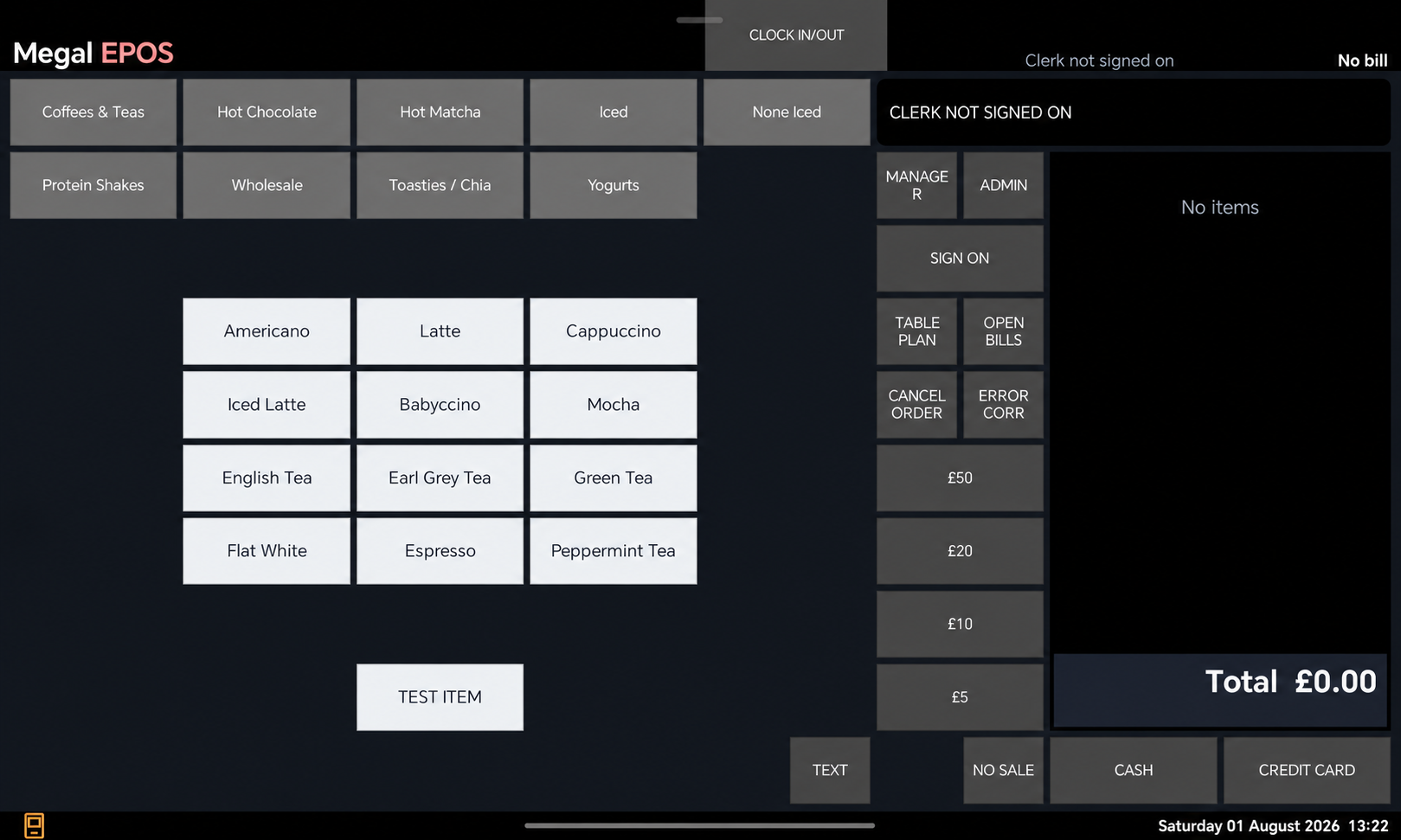
Android and Windows both use the same 16 column by 10 row grid on every screen size. The register is a fixed 4 columns by 8 rows. Its cells remain reserved for the bill and totals; payment and function buttons stay outside it.
02
First run and licensing
Every till requires its own device-bound licence. Use the business owner's billing email on every till owned by that business. Back Office can then assign individual tills to separate operational locations without changing the licensing email.
- Open the Licensing screen. It appears automatically when the till has no usable licence. An administrator can also open Admin > Licensing.
- Enter the customer email. Use the same address on every till that should appear in the same Back Office.
- View the agreement. Read the Licensing and Usage Agreement, then record acceptance online.
- Choose the licence route. Start the one-time 14-day trial, or open License Checkout to register the till and approve its recurring PayPal subscription on the website.
- Wait for confirmation. The till must report an active trial, paid subscription, VIP licence or valid grace period before normal use.
Once the trial has been used, its button is permanently removed. Once a paid or VIP licence is active, activation and subscription buttons are hidden and only the agreement viewer and licence information remain.
Install or update Android
Download the current signed Android APK. For an update, install it over the existing Megal EPOS app. Do not uninstall the app, clear its storage or reset the tablet first, because those actions remove local till databases. A normal signed upgrade retains products, layouts, printers, licensing and sales data.
The website edition checks for signed updates at startup and periodically. From Android 2.024, choose Later, then snooze for 1, 3, 5, 10 or 24 hours. The selected time is saved across app restarts, and the update is offered again after that time when the app can check. Choose Upgrade to download and install in place, retaining data and settings. Finish the current operation before installing.
Remote Android updates
Force update, from 2.027: Back Office → Tills → Remote till updates → Force update — keep session open. The selected till briefly stops and updates in place while retaining its open session, bills and saved pending payments. It does not run End of Day or create replacement payments. The usual fresh settings backup and signed APK checks still apply. Keep the app online with its main screen available; finish or cancel unsaved keypad entries, cash counts or refund screens first. Android may still require local confirmation or reopening. Install 2.027 or later normally once before future updates can use Force update. A waiting normal request can be escalated before downloading starts.
From 2.025, open Back Office → Tills → Remote till updates and select the individual till. It saves a fresh encrypted settings backup, waits until the clerk is signed off, all bills and payment/refund operations are finished and the till session is closed, then downloads the published APK. The till checks its checksum, package, increasing version and signing certificate before updating in place. Existing data and settings are retained; it does not restore a different till's data.
First-time setup: install 2.025 or later through the normal updater once. Unattended self-updates require Android 12 or later and Android's Allow from this source permission for Megal EPOS. Older Android devices and the Play edition use their normal update route. Leave the app running and online; remote updates are carried with its regular background check-in.
Android may require local installation confirmation or prevent automatic reopening. Back Office distinguishes On-site action required, Installed — reopen till and Update verified; only a running updated till's check-in verifies completion. If Android blocks reopening, someone must open Megal EPOS again. A request can be cancelled while waiting for its backup, before it reaches the till. Failed updates stop and show an explanation. Older till builds continue working and ignore this feature.
For an ordinary update, install the current website APK over the existing app using the same signing identity. Do not uninstall, clear storage or reset the tablet. Android may still require installation confirmation or reopening. Before replacing a device, capture a full till backup and arrange validated recovery; a settings sync alone does not preserve sales, open bills or pending payments. A saved archive is not proof that a replacement device is ready to trade.
The till checks at startup and periodically while running. Outside a valid licence or grace period, operation is blocked and the licence issue cannot be bypassed.
03
Sign on and permissions
The till opens to the sales screen and does not force a clerk selection immediately. A clerk must sign on before protected actions or sales can be completed.
- Press Sign On.
- Enter the clerk login code on the centred keypad.
- Press Enter. The clerk name appears in the top bar.
- Press the same control again to sign off when the till is no longer attended.
Standard, Manager and Admin user types control menu access. Individual permissions can also allow refunds, X reads, Y reads and No Sale. The till records the signed-on clerk against each completed transaction and sends that name to Back Office.
Each staff record has a Compulsory clock in Yes/No setting. When it is Yes, a non-admin user must have an open attendance shift in the till's current group before they can sign on or continue using sales functions. It defaults to No for existing users.
When Sign off after order is enabled, the completed order remains visible with Paid and any Change at the bottom of the total area. The till does not immediately open another sign-on window. The next protected action prompts for a clerk, and a successful sign-on clears the previous completed-order display.
04
Clock in and out
Clocking in is separate from signing on to operate the till.
- Press Clock In/Out in the permanent control strip.
- Enter the staff login code.
- Press Enter. If the staff member has no open attendance entry, the till clocks them in; otherwise it clocks them out.
Attendance entries are uploaded to Back Office. Matching entries from more than one till are consolidated so the same shift is not counted twice.
Clock In/Out remains available when daily cash reconciliation is enabled and the till is closed. Staff do not need to open the trading session or sign on as the active sales clerk before recording attendance.
Managers can open Clocked In Users to see the open shifts known across tills in the same Till Group Number and, after confirmation, force an individual shift to clock off. The closure is synchronized to the other tills and Back Office.
05
Start and build a sale
- Sign on. The top bar must show the clerk who is operating the till.
- Select a menu page. Page buttons change the products shown without adding an item.
- Press a PLU. The item is added to the register. Assigned Option Menus run in order, followed by the optional Addons list when enabled.
- Review the register. It automatically scrolls to the newest line. Tap a line to select it for correction or an item discount.
- Take payment. Use Cash, a quick cash button or Credit Card.
| Control | Use |
|---|---|
| Error Correct | Remove the selected PLU, Addon or Option Item before payment. |
| Cancel Order | Cancel the current unfinished order after confirmation. |
| Price Query | Temporarily display an item and its configured price without adding it to the sale. |
| PLU Lookup | Find and select an item from the product list. |
| Program PLU | Open the product editor for authorised maintenance. |
| Misc Item | A user-named open-price PLU. Every press asks for its selling price before adding it to the order. |
A Misc Item retains its configured name and the price entered for that particular sale. Both appear on the current register, the customer receipt, Print Previous Receipt output, refunds, till sales records, Back Office sales records and report exports.
06
Bills, tables and order locations
New Bill starts a separate open transaction. Open Bills lists held bills so a clerk can resume one. Complete or cancel the current work before opening an unrelated bill.
Table Plan assigns a bill to an active restaurant table. Tables have a name, area, seat count, order and active state. If order locations are enabled in Preferences, the customer's service location, such as Eat In, Outside or Take Away, is selected and retained with the sale. This is separate from the till's site or branch.
On Android 2.007 and later, open Admin > Floorplan editor, or the floorplan button in Preferences. Create up to ten areas, choose a default, import a BMP, JPG or PNG background, and add numbered tables. Drag tables to position them; tap one to choose its shape and size. The Tables button also lists the tables in the current area. Save to retain the layout. In Back Office, use Settings > Floorplan, then the normal Save Changes and Send To Selected Tills controls. Older tills continue receiving their supported settings; they do not receive the new floorplan field.
In normal Table Plan, select an area, tap a table and choose Open Order to reopen its bill. The right-hand column shows T1, T2… takeaway checks. Online collection and delivery orders use the first available check, with customer, address, time, items, payment and fulfilment details. From Android 2.023, select an available T-number to assign a counter order to that check, or use New counter order for the first available check. Enter the counter customer's details. A check remains occupied until its bill is completed or cancelled.
For an online check, Edit / refund enables changes while retaining the original order and payment. Additional charges are taken at the till. For an overpayment, choose Refund difference to return the difference to the original online payment. If its result is unknown, Check refund result checks the saved request without submitting another refund. Pending refunds and cancellations block new edits and payments, including after an app restart. A revised kitchen ticket is clearly marked as replacing the original.
On Android 2.034, Store Table opens the table map when the current order has no table, so you can choose an available destination. Cancelling keeps the current order. Table and takeaway-check orders ask for a location when opened or explicitly stored. The table, customer, covers and location remain attached to the bill after storage releases it from the clerk. Reopen it from Table Plan to continue serving it.
Storing a table or check sends its kitchen items to the configured printers. Storing it again without changes sends nothing; added items or quantities print only the additions. Amendments and cancellations are labelled, and taking payment does not repeat already-sent items. If a ticket fails or its output is uncertain, inspect the printer before choosing an explicit retry from Admin Menu > Kitchen Printers > Pending tickets. Tickets remain available there after payment. Outstanding tickets block handover; update all sharing tills to 2.034 so confirmed kitchen history can travel with the order.
Bills and customer receipts print TOTAL at double width and height. Kitchen tickets, bills and receipts show enlarged table/check, customer, covers and location details between dashed lines, and include the clerk name where recorded.
From Android 2.023, Store Order and clerk sign-off also release table and takeaway orders from the clerk. The bill stays on its table or T-number, including items, customer details and payments. Signing on again leaves it stored; select the table or check and choose Open Order when ready. Unassigned orders still store against the clerk. Online collection and delivery orders continue using the first available takeaway check.
Android 2.024 asks for the customer name and number of covers when opening a restaurant table, prefilled on reopening. Both are saved with the table, shared over LAN and printed on the kitchen ticket. Selecting an occupied table offers Print Bill without opening or settling it. A bill printed from another till's received copy is labelled as a shared copy; confirm the originating till has finished and synced its changes. Table and takeaway orders remain stored against their table or T-number when the clerk signs on again.
To correct a discount, tap its discount row and press Error Correct. Only that discount is removed; the items remain and totals/VAT recalculate. Received payments appear as positive amounts on the register and receipts. Refunds remain clearly identified. Clocking out the signed-on clerk also signs them off when Must clock in before using till is enabled; their order is stored through the normal sign-off process.
Every open bill must be completed or cancelled. Megal EPOS will refuse to close the period while open bills remain.
07
Register controls
The black register shows item quantities, PLU names, Addons, Option Items, kitchen messages, discounts and values. The total is right aligned. If VAT is disabled or its rate is zero, VAT and subtotal lines are hidden and the total panel contracts to the required height.
When a partial cash tender is entered, the change/balance area shows the amount remaining: a £12 bill with £10 tendered shows £2 remaining. Add Cancel Tender to the main layout for staff who need to cancel a partial tender and restart. Age Check and Cancel Tender are layout functions, not permanent bottom-bar buttons.
The register automatically scrolls to its newest item. Paid is hidden until money has actually been tendered. After completion, the totals area keeps Total, Paid and any Change on separate readable rows until the next clerk signs on or begins another action.
| Control group | Purpose |
|---|---|
| Numeric keypad | Enter quantities and prompted amounts. |
| Quick cash | Complete a cash sale with a fixed tender such as GBP 5, GBP 10, GBP 20 or GBP 50. |
| Permanent strip | Clock In/Out, 10%, 20%, 25%, 50%, Subtotal and Text. |
| Enter Cash | A centred payment keypad opened by Cash; it does not cover or replace the saved till layout. |
08
Addons and option menus during a sale
A PLU can have ordered Option Menus and directly assigned Addons. After the PLU is added, each active Option Menu opens in its assigned order. Choose one Option Item to add it and advance to the next menu. The cross closes the sequence without adding another choice.
After the last Option Menu, the assigned Addons list opens when Modifier menu is set to Yes in Preferences. Select optional extras and use the top-right cross to close it. When Modifier window persists is enabled, the Addons list stays open for further selections; otherwise it closes after one addon. Turning Modifier menu off skips this automatic Addons popup but does not disable ordered Option Menus.
Addons can also be assigned directly to normal screen buttons in the Back Office layout editor. Select the parent item in the register before pressing a direct Addon button. Each Addon or Option Item appears beneath its parent PLU and its price change is included in the line total. Unpriced Addons and options, including kitchen/bar messages, show no 0.00 on their buttons or register lines; charged modifiers still show their amount.
To remove an Addon or Option Item before payment, select its register line and press Error Correct. Stock changes only when that record has Deduct stock enabled.
09
Subtotals and discounts
On current Android, create a saved percentage with Admin > Edit Layout > Add New Button > Custom discount button. Enter, for example, 15, 17 or 17.5, place it and press Save This Screen. The percentage stays with that button after restart and configuration sync. Select it and use Edit Button / Discount to change the rate or caption, then save again.
The permanent discount buttons apply 10%, 20%, 25% or 50%. Each PLU, Addon and Option Item has its own Allow discount setting. Components set to No are excluded while eligible components in the same item or bill are still discounted.
Discount one item
- Tap the item in the register.
- Press the required percentage.
- Check the discount line and revised total.
Discount the whole bill
- Add all items.
- Press Subtotal.
- Press the required percentage.
If no item is selected and Subtotal has not armed a bill discount, the till asks you to choose one of those two routes. If the selected item or bill has no discount-eligible value, Megal EPOS leaves its total unchanged and reports that no discount can be applied.
10
Cash payment and No Sale
Cash
- Check the total and press Cash. The centred Enter Cash keypad contains 0, 00, decimal point, Clear, Back, Cancel and Enter.
- Type the amount tendered and press Enter. To take the exact amount without typing, press Enter once to place the amount due in the black display, then press Enter a second time to confirm it.
- The till records the sale, opens the enabled drawer, prints configured receipts and shows Paid plus any Change at the bottom of the totals box. A fixed quick-cash button completes the same process using its stated tender value.
On an updated Android till, a partial tender leaves the bill open and shows the remaining amount beneath Total, in the same place used for Change Due. For example, £10 tendered against a £12 bill shows £2 remaining. Where the till layout includes it, press Cancel tender in the main sales area to remove an unfinished cash or cheque tender and start that payment again without deleting the items. Card and online payments require their provider refund or resolution process.
Android 2.023 adds a Legacy Voucher function to the button editor. Enter the voucher amount to apply a manual Voucher tender; it appears as Voucher on the receipt and Z report. Any remaining balance can be paid by another tender. Only the outstanding bill amount is applied, with no cash change. This manual tender works locally and does not validate a numbered Back Office voucher. Cancel Tender can remove it from a partially paid bill before completion.
No Sale
Press No Sale to open the drawer without completing a transaction. The signed-on clerk must have No Sale permission. No Sale remains available while a reconciliation-controlled till is closed, because it does not start a trading transaction.
When Cash Drawer Enabled is on in Receipt Settings, the till sends the drawer pulse after Cash and No Sale. It is enabled by default.
11
SumUp card payments
Android can use the SumUp Android SDK with a supported reader or the SumUp Cloud API with a paired Solo. Compatible updated Windows tills support SumUp Cloud sales with a paired Solo; when Cloud payments are disabled, Windows keeps its existing external-terminal card workflow. SumUp Cloud requires internet access.
- On Android, confirm the reader icon in the bottom-left status bar shows the connected state. On Windows, use Admin > Card Payments > Check Reader Status.
- Add the order and verify the amount.
- Press Credit Card. Megal EPOS sends the amount to SumUp.
- Let the customer complete or cancel the reader prompt.
- Megal EPOS returns to the till, verifies the result and only finalises a confirmed payment.
Successful integrated card sales store the SumUp transaction and payment references against the order. Android uses those references to find and refund the original payment. Windows SumUp Cloud currently supports sales only, so Windows card refunds remain an external/manual terminal workflow.
Do not take a second or alternative payment if the app, reader or internet connection was interrupted. On Android, use Check Pending Payment. On Windows, leave the bill open and press Card again after connectivity returns so Megal EPOS can recover and verify the saved checkout.
12
Hosted online ordering
Megal EPOS hosts the menu and checkout. Each business location has its own generated public link and its own ordering configuration. Add the correct location's link to an Order Online button on the relevant website; no website-side installation or credentials are needed.
- In Back Office > Settings, choose the outlet base currency (GBP, USD or EUR). Then under Till Data > PLUs, set Available online to Yes only for products that should appear. New PLUs default to No. Misc Item PLUs are never published, and a product that deducts stock and forbids negative stock stays off the hosted menu until central stock reservations are supported.
- Open Online Ordering. Enter the business name and timezone, then enable collection, delivery or both. If delivery has a fee, select the VAT rate included in that fee.
- Add one or more ordering periods for each trading day. Customers may browse while closed, but checkout is accepted only inside a saved period.
- Select the tills that may receive web orders and, if required, choose a preferred till. The preferred eligible till is tried first; other selected tills provide failover.
- On each receiving till, switch Online Orders on. If daily cash reconciliation is enabled, also use Open Till. Without reconciliation, the switch can be used manually. At least one selected till must be licensed, eligible and have a current heartbeat and printer status.
- In Ordering channel, set the business colours and enter its Privacy policy, Refund policy and Terms and Conditions URLs. All three are mandatory before new orders can be placed. The links appear above Place order without acceptance checkboxes; accepted-card logos remain below the button.
- Save the channel, copy Hosted ordering page or Button HTML, and add it to the business website. Open the generated page in a new tab for provider-hosted payment authentication.
Locations do not share an ordering channel. Menu availability, trading hours, collection and delivery choices, delivery fees, payment-provider accounts, customer memberships, orders, and receiving tills are all saved against the selected location. Switching location in Back Office therefore opens that location's ordering setup; it does not alter another branch.
| Checkout choice | What happens |
|---|---|
| Cash on collection | The order reaches the assigned till with payment due when the customer collects it. |
| Cash on delivery | The order reaches the assigned till with payment due on delivery. |
| Dojo online | Connect the location’s Dojo account and enable the intended sandbox or live environment. The customer is taken to secure provider-hosted checkout, then returns to the business ordering page. An order is treated as paid only after server confirmation. |
| SumUp online | When an enabled SumUp account and payment-reconciliation worker are configured, the customer completes provider-hosted card checkout. Megal EPOS does not receive card numbers. |
Select the hosted provider for this location in Back Office; Dojo and SumUp credentials are kept separately. Live payments require the server live-payment setting and a suitable live provider account. Cash choices remain available when their matching collection or delivery method is enabled. Barclays is not currently offered.
Customers can fill a basket before signing in, but must register or sign in with their email and chosen password before placing an order. Registration asks for name, email, phone number and a primary address. Remember me keeps the login for longer on that device. Phone numbers are text, so enter the leading zero where applicable. A customer can save more than one address. For collection the primary address is used; for delivery the customer chooses a saved address or adds another, and that chosen address goes on the order and kitchen ticket. The saved primary address is not changed by choosing a delivery address.
After an order is accepted, a confirmation email contains the reference, items, total, payment state and collection or delivery details. Cancellation sends a separate email. These messages enter a reliable mail queue; a server worker checks it every minute and retries temporary mail failures, so checkout does not depend on immediate mail-server availability. The business’s optional email-offers checkbox is always available and is not required to order. There is no Megal EPOS promotional opt-in at checkout. The footer shows Powered by Megal EPOS, Megal EPOS Privacy and Megal EPOS Email Preferences.
On desktop, categories are on the left, items beside them and the basket on the right. On tablet portrait, use View basket. On phones, choose a category, add items and use Back to categories to choose another; the basket is retained.
The hosted menu, basket, checkout and payment request use the outlet's saved base currency. An online card provider must be configured for that same ISO currency; Megal EPOS rejects a mismatched amount or currency rather than accepting an incorrectly denominated payment.
Each accepted order is server-priced from the latest eligible till menu, assigned once to one till and given an external order number. It appears in the till's stored/open-order list and prints through that till's configured receipt and kitchen routes. Imported lines and totals remain protected. On Android 2.007 and later, use the online check's Edit / refund action for controlled changes, additional charges and refund differences, as described under Bills, tables and order locations. Older tills retain their existing restrictions.
Android 1.70 and later has an Online Orders switch in the top bar. Red with the control to the left means off; green with the control to the right means on. When Daily Cash Reconciliation and Auto Online Orders are enabled, opening the till switches online orders on and closing it switches them off. Staff can still switch online orders off or back on manually while the till is open. With Auto disabled, staff control the switch while the till is open. When Daily Cash Reconciliation is disabled, staff can control the switch manually without opening a till session. The switch does not override the Back Office ordering hours, manual pause, till heartbeat, licence, currency or fulfilment checks.
Android 1.71 and Windows 1.23 add Allow Z Read While Clocked In, which is off by default. When off, every non-admin user in the same till group must be clocked out before End of Day. When on, the Z Read can run while users remain clocked in. Admin users retain full till access without clocking in and an admin attendance shift never blocks the Z Read. Open or stored bills must still be closed.
On Android 1.65 and later, open the received online bill and choose its cancel action to cancel it. The till asks for confirmation. A cash-due order is cancelled centrally and closed locally; a paid online order is closed only after the configured provider confirms the required refund. If the refund fails or its result is uncertain, the bill stays open and Back Office marks it for review. Check the saved provider transaction before any further refund attempt. An older till does not gain this action automatically.
Back Office stores customer details separately for each business owner. The owner can use Customer Accounts to see one combined list across their locations; an additional Back Office user sees only locations assigned to that login. The Online Customers view and order history remain scoped to the selected location. Remove Outlet Membership removes that outlet's access and marketing consent; it does not delete another outlet's membership or retained order records.
A till that does not advertise online-order capability is labelled Till software update required and is never selected as a receiver. It continues normal local sales and compatible Back Office sync without receiving an unfamiliar order payload.
12A
Customer bookings
Each location has a Table Bookings tab in Back Office. Open the tab, switch table bookings on, save its settings and copy its Customer booking link to the location's website. Customers create an account or sign in to make, amend or cancel their bookings. A booking asks for the number of people, time, name, address, email and phone.
- Set the location timezone, session or table duration, maximum people per booking, advance booking window and minimum notice.
- Under Weekly booking standard, switch each weekday on or off. Set its times, maximum covers per time slot and, where shown, maximum covers for the whole day. Copy times and covers from another weekday when the same pattern applies.
- Under Specific dates, pick a date and choose Use weekly standard, Custom times and covers, Full — stop bookings or No bookings available. A custom date changes only that date; existing bookings stay in the register.
- Set a standard deposit per person and the range of party sizes to which it applies. Enter the business PayPal email to collect required online deposits; the booking is confirmed only after payment is received. A PLU-specific booking deposit replaces the standard amount for that person; selected item deposits add together and apply even to one-person bookings.
Times are arrival times in 15-minute increments. The end time is the last time a guest can book, not their departure time: 19:00–21:00 with a two-hour duration offers arrivals through 21:00, and a 21:00 booking lasts until 23:00. Unavailable calendar days are greyed out and cannot be selected; the page starts at the next available date when today is unavailable.
A standard £5 deposit per person is £30 for six covers. Changing the cover count recalculates the total. A menu-item deposit applies even to one person; deposits on that person’s selected items add together and replace their standard deposit. Only the deposit is collected at booking, not the whole preorder price.
For table bookings, Order upfront can require every cover to choose Adult or Child and at least one item from the products permitted for that menu. These choices are saved with the booking and are not charged online. Use the date picker above the booking register to print the selected day's kitchen preparation summary and front-of-house list in time order.
On a compatible Android till, open Manager > Bookings to see the location's latest saved bookings. When a guest arrives, choose Arrived / open bill, select an available table and confirm. The booked menu items and any recorded deposit are added to a new bill, which remains open until the customer pays. The till checks that each preordered product still exists before importing it.
Open a booking and choose Assign table to view the floorplan for its booking date and time. Reserved tables are shown differently. Pick a free table and confirm Assign booking to this table. Reopen Assign table to change it; the booking’s deposit stays attached. Assignments must use the booking’s date. A required unpaid online deposit does not confirm a booking or reserve its table.
Android 2.010 adds a Booking Deposit function button. Choose or create a booking first, enter its deposit and take Cash/Card payment. The paid receipt is credited once after sync. X/Z and End of Day show Deposits received and Deposits redeemed; receipt-day figures include the counter deposit and later settlement deducts it to avoid counting it twice.
From Android 2.017, the Booking Deposit button works for a booking already saved on the till without contacting Back Office. Choose the booking, enter the deposit, then take Cash or Card. Card payments still require approval by the selected payment provider or terminal; losing Back Office connectivity does not bypass card authorisation. Paid deposits appear locally and on other approved tills in the same LAN group. They remain queued after a restart and credit the booking once when Back Office reconnects. Partial payments remain on the original deposit bill until completed. Booking confirmation and table availability are checked by Back Office when it syncs; from 2.018, Create booking also saves new bookings locally using the location’s previously downloaded settings. Required name, address, email, phone and covers are retained and shared with approved LAN peers. Standard deposits are calculated per person. The booking and paid cash/card receipts upload without duplicates when connected. A booking that conflicts with current availability or menu rules is retained for review, with its money attached. Use Online preorders when choosing event menus, adult/child items and modifiers.
Use the booking Events settings for a dated menu with first and last arrival times, adult/child items and permitted modifiers. That event menu replaces the ordinary preorder menu during its window. Opening days and available booking slots still apply.
Android 2.024 tills share operational copies on the same local network, business location and till group. Upgrade every sharing till to the same version. Before joining, each licensed till must check in, download the existing data for its location and till group from Back Office, and confirm that it applied successfully. Only then does Back Office approve sharing. A failed or interrupted download leaves the new till unapproved, so its old layout cannot overwrite other tills. No manual approval is needed. View the status in Back Office → Linked Tills → Local network sync approval. Only tills with the same owner email, business location and till group can join the saved list. Initial setup runs automatically without a join prompt. Each till stores its allowed-till list, so LAN exchanges do not contact Back Office each time. Licence and membership changes apply when that list refreshes; offline access ends at the saved licence deadline. A new key, location or group requires a fresh download and confirmation before approval. From Android 2.024, group operations use LAN only within the same business location and till group. Shared tables appear blue on Table Plan. Choose Orders on other tills to view saved details and request a stored bill. Store/sign off on the original till before opening it elsewhere. The original till must confirm handover; pending payments and refunds must be resolved there first. Copies do not create duplicate sales or printing. Cash/card taken before handover stays in the original till’s totals; Group cash/card adjustments explain the allocation on X/Z and End of Day. A previously cloud-stored bill from an older build must be finished on its original till. Menu/staff updates wait until a receiving till has no open orders. Existing older tills retain their current operation.
Android 2.007 adds a dated booking calendar. Move backward or forward by day, week or month, choose a date with the calendar button, or return to Today. Rows are ordered by time and show the customer's name, phone, covers, preorder status and assigned table. Open a row for adult/child menu choices, deposit paid and outstanding, and allergy information. Use Create booking to take a booking at the till; opening times, capacity and required preorder choices are checked by Back Office. You can also add Bookings as a normal function button in the layout editor.
12B
Record an age check
On an updated Android till whose main sales layout includes the action, press Age check. Enter the date of birth, check the calculated age, choose whether ID was seen, optionally enter a passport or driving licence number, then choose Service approved or Service refused. The record includes the time and signed-on till user. Use View records on the till or Back Office > Age Checks with a date range to review uploaded checks. An offline till sends saved checks when it reconnects.
13
Refund a cash or card sale
Refunds begin from the original completed transaction and return money through its original payment method. You can refund the full sale or selected item quantities and amounts. The item list scrolls when a sale contains many items.
- Sign on as a manager or a clerk with refund permission.
- Open Manager > Refund.
- Choose whether the original payment was Cash or Card.
- Select the original transaction, identified by date, time, sale or bill number and remaining refundable amount. Only refundable sales completed on the till's current local calendar day are listed or searchable; a sale from an earlier day cannot be refunded. For cash, search by sale or receipt number. For card, you can also search by the SumUp transaction or payment reference.
- Use plus and minus to choose each item quantity, or press Full Refund.
- For a partial item refund, choose Edit amount and enter a value up to the paid value of that selected quantity.
- For each selected item choose Not returned, Item returned or Item in waste. Not returned is the default.
- Select the refund reason, review the original transaction and total, then confirm.
| Stock choice | Effect when the PLU is stock controlled |
|---|---|
| Not returned | No stock quantity is changed. |
| Item returned | The returned quantity is placed back into stock. |
| Item in waste | The refund is recorded with the item marked as waste. |
If stock control is disabled on the PLU, Megal EPOS still records the refund reason, amount and disposition, but it does not alter stock.
A cash refund is recorded as a negative cash tender, opens the enabled cash drawer, prints a refund receipt and reduces the cash totals in reconciliation, X reads and Z reads. On Android, an integrated SumUp card refund is sent back to the original payment before Megal EPOS records it as successful. Windows SumUp Cloud currently supports sales only; process a Windows card refund through the existing external/manual terminal workflow.
For an Android Dojo sale, the refund confirmation offers Refund to original card and Refund using terminal. These are separate routes; a failed direct refund never silently switches to a terminal refund. A remaining gratuity can be refunded separately or included in Full Refund. Use Recover Dojo Refund after an interruption; do not create a second refund to obtain a receipt. The sandbox direct-refund endpoint rejects virtual-terminal payments; Dojo has confirmed this sandbox limitation. Terminal-based refunds use their supported terminal workflow. Live use remains subject to Dojo’s approval.
A failed SumUp refund is not recorded as successful locally. A 409 insufficient-balance response means the SumUp account does not currently have enough available balance; resolve that in SumUp before retrying. Never repeatedly retry an uncertain refund without checking the SumUp transaction first.
14
Order and receipt printing
After a completed sale, Megal EPOS prints to the configured receipt printer and sends the order to active kitchen printers. Ordinary kitchen output uses double-width, double-height text for visibility and includes the customer's order location, such as Eat In, Outside or Take Away, when one was selected. Current Android online-order kitchen tickets use double-size KITCHEN ORDER, date/time, Order Items, item text and Payment Due; customer details stay normal size and wrap across the available paper width.
An online kitchen ticket prints KITCHEN ORDER, the print date and time, online order number, customer, COLLECTION or DELIVERY, Cash or Paid Online, phone, email, address, order items and Payment Due. The phone number is printed as text, including a leading zero. Collection shows the account's primary address; delivery shows the address selected for that order, even when it differs from the primary address. Paid-online orders show Paid in the Payment Due line.
The separate online customer receipt includes the configured logo and heading, customer details, selected fulfilment address, item prices, calculated charges and total. COLLECTION or DELIVERY and payment status print double size at the bottom. A paid online receipt shows PAID ONLINE without a Payment: prefix. TOTAL DUE appears in large text only while money remains owing. Delivery receipts use the chosen delivery address; collection receipts use the primary address.
Press Text before payment to add a free-text kitchen message such as preparation or allergy information. The message appears in the register and is printed with the order.
Receipts can include header and footer text, logos, item and discount detail, VAT where enabled, tender information, sale/order identifiers and both SumUp references for card payments.
Add the Print Previous Receipt function to a till page when staff need it. It prints the most recently completed retained transaction as a clearly marked duplicate receipt; it does not reprint the kitchen order or create another sale.
16
Preferences
Open Admin > Preferences to set:
| Setting | Purpose |
|---|---|
| Till name | The friendly machine name shown in Back Office instead of the Android or Windows hardware name. |
| Till site / branch | An optional site, bar or branch label used to identify the till in Back Office. It is not the customer's order location. |
| Till group number | Separates local-network peer discovery when more than one independent till group shares the same network. It defaults to 1. Android 2.016 discovers approved tills in matching groups directly on the local network, using its saved Back Office approval list; all sharing tills must run the same version. Use different group numbers for independent tills on the same network. |
| Daily Back Office poll | 24-hour time used for the daily acknowledged upload-queue archive. |
| Currency | The outlet's base currency: British Pounds (GBP), US Dollars (USD) or Euros (EUR). It controls till, receipt, report, hosted-ordering and payment amounts. |
| Clerk idle logout | Number of inactive seconds before the current clerk is signed off. Every screen touch or key press restarts the timer. The default is 30; set zero to disable it. |
| Sign off after order | Signs the clerk off after an order is completed or stored, requiring a login for the next order. Enabled by default. |
| Modifier menu | Choose Yes to show directly assigned Addons automatically after a PLU's Option Menus, or No to skip that Addons popup. Ordered Option Menus still appear. |
| Modifier window persists | Keeps the automatic Addons list open until the clerk presses the cross. |
| Auto Online Orders | When reconciliation is enabled, opening the till switches online orders on and closing switches them off. Staff can still switch manually while open; Back Office hours and eligibility remain authoritative. |
| Allow Z Read While Clocked In | Off by default. Off requires non-admin staff in the till group to clock out before End of Day. On allows End of Day while they remain clocked in. Open bills must still be resolved. |
| Daily reconciliation | Requires a counted opening float, recorded cash in/out movements and a counted closing Z. Leave off to retain the standard Z Read workflow. |
| VAT rate / Charge VAT | Controls VAT calculation and whether VAT/subtotal lines appear. |
| Next sale number | Sets the next sequential till sale number. |
| Allow negative stock | Permits sales below the recorded stock quantity where product settings allow it. |
| Kiosk mode | Enables the current restricted-mode groundwork. The customer-facing self-service kiosk, product images and kiosk template workflow are still in development. |
| Order locations enabled | Requires the customer service location to be selected before payment and includes it in order-location reporting. |
| Reset Sales Data | Permanently clears transactional data held locally on this till after an HMRC warning and typed confirmation. |
Complete or cancel every open or stored order first. Read the irreversible-deletion and HMRC record-retention warning, then type RESET SALES exactly to confirm.
The reset removes local bills, sales, receipt and refund records, payment provider records and Z reads, and restarts the visible sale and bill numbers at 1. It does not delete Back Office data, alter products, layouts, stock levels, printers, licensing or other settings, and it does not refund payments with a payment provider. Complete any required provider refunds before resetting.
Saving the till name or site / branch updates the till identity sent to Back Office on the next sync.
Back Office treats till name, site / branch and Till Group Number as per-till identity. A routine settings deployment leaves them unchanged; tick Also copy the till name, site / branch and till group number only when the destinations should deliberately receive the source identity values.
If the idle timer or a manual sign-off finds an unassigned open order, the till stores it against that clerk. From Android 2.023, orders assigned to a table or takeaway check instead remain against that table or check and are released from the clerk. Android 2.024 tills share stored orders through the verified local group using LAN only. Signing on with the same clerk number can resume an unassigned clerk order; use Table Plan and Open Order for a table or takeaway check. Another till must receive confirmed handover from the original till before editing. If the original till cannot be reached, the stored copy stays safe and transfer waits; two tills cannot settle the same bill independently.
17
Clerks and permissions
Open Admin > Edit Clerks to add or edit a user number, login code, display name, type and active state. Grant only the permissions needed for the role:
- Admin has administrative access and can manage configuration.
- Manager has Manager and Admin Menu access without being the required configuration administrator. Back Office preserves this type on existing users; its new-user selector offers Admin, Standard and Trainee.
- Standard is the normal trading role.
- Trainee can practise entering and tendering orders, but practice sales are discarded and are never included in sales, stock, receipts, kitchen tickets, uploads or reports. Training mode does not open the cash drawer.
- Refunds permits entry to the refund workflow.
- X Read permits a current-period read without closing it.
- Y Read permits the corresponding intermediate read where available.
- No Sale permits opening the cash drawer without a sale.
- Compulsory clock in requires a non-admin user to clock in before signing on or using the till. Admins retain access without clocking in. It is off by default so existing staff behavior is unchanged.
A remotely edited configuration must contain at least one active Admin user. Back Office rejects a configuration that would remove all administrators.
18
PLUs, addons, option items and menu levels
Menu levels, groups and departments
Menu levels define product pages. Set a page code, title, sort order and default page. Groups organise PLUs and can provide default menu and product button colours. Departments are a separate editable reporting dataset: Food and Drink are supplied initially, and further departments can be added, renamed, reordered, or disabled.
PLUs
Open Admin > Edit PLUs. Each PLU can hold an optional group, an optional reporting department, code, name, price, tax rate, button colour, current and minimum stock, stock-control flags, Allow discount, Available online, sort order and active state. It can also hold an ordered list of Option Menus and a tick-list of Addons. Allow discount defaults to Yes; Available online defaults to No. A PLU button continues to work when either classification is unassigned.
Use Option Menus and Addons while editing a PLU to tick the required assignments. Option Menu order controls the sequence shown to the clerk.
The hosted menu includes only active PLUs marked Available online. To prevent an online order that the receiving till would have to reject, a stock-deducting PLU that forbids negative stock is also withheld until central stock reservations are supported.
Misc Item PLUs
Use Create Misc Item when a button needs a user-defined description but no fixed selling price. Give it the exact name required on receipts and sales records. Megal EPOS creates an open-price PLU and its button; its base price is zero, stock deduction is off and Available online is off. Multiple separately named Misc Item buttons may be created. The operator must enter a price every time one is pressed.
Addons
Open Admin > Edit Addons to maintain code, name, price change, tax rate, button colour, current/minimum stock, stock-control flags, Allow discount, sort order and active state. Addons are optional extras assigned directly to a PLU or used as direct layout buttons.
Option Items and Option Menus
Option Items use the same price, tax, stock, discount, colour, order and active fields as Addons, but they are offered as choices inside Option Menus. Open Edit Option Menus, create a code and name, tick the Option Items included in that menu, and set its sort order. Assign one or more Option Menus to a PLU in the order they should appear.
19
Stock control
Android 2.016 shares PLU, Addon and Option Item quantities between tills on the same local network and same till group. From Android 2.024, stock sharing is LAN only within the same business location and group. Upgrade every till in the group to the same build and let them sync before trading. The first connected till supplies one opening stock balance; copies are never added together. Check this opening count, then enter any correction once. Sales, returned refunds, deliveries, waste and stock transfers publish their stock movements to peers, including changes made while disconnected when the tills reconnect.
In 2.016, a newly created product or modifier publishes its opening quantity over LAN without waiting for Back Office. Enter an opening quantity or correction once, let it reach the other tills, and check the result before trading. During disconnection, other tills retain their last received quantities, so a shared stock figure may temporarily be out of date.
Stock can be enabled separately on each PLU, Addon and Option Item with Deduct stock. Records without that setting still sell and refund normally but do not change stock quantities.
| Admin function | Use |
|---|---|
| Stock In | Add received quantity to a PLU or modifier, with optional notes. |
| Waste | Record stock removed as waste, with optional notes. |
| Transfer Stock | Move recorded quantity to a configured transfer location. |
| Transfer Locations | Create and maintain the available stock destinations. |
| Current Stock report | Review recorded quantities. |
| Stock Requirements report | Find items at or below their minimum level. |
If negative stock is not allowed, Megal EPOS prevents a stock-controlled sale that would take the item below zero. Global and item-level settings both apply.
20
Till layout editor
Open Admin > Edit Layout. Every Android and Windows till uses the same landscape 16 x 10 logical layout, regardless of its physical screen size or aspect ratio.
- Select the menu page.
- Add a PLU Item Button, Misc Item, Menu Level Button, Cash Register Control Button or Other Function Button.
- Place it on an empty cell in the 16 x 10 grid.
- Edit its caption, action target, row span, column span, colours and visibility.
- Save and return to the till to review the live result.
Buttons may span more than one grid cell. The editor prevents overlapping placements. Cash register and fixed-interface cells remain reserved. A smaller or differently shaped screen scales or scrolls this same layout; it does not select a different template.
Back Office sends the 16 x 10 menu only to Android or Windows clients that report the matching layout format and capability. A legacy till keeps its installed layout while the server delivers the other compatible configuration sections, so updating one till does not overwrite an older till with unfamiliar coordinates.
Use the Back Office Screen Layout editor when assigning a direct Addon button. The Android on-till editor handles PLUs, pages and functions; the remotely saved layout supports Products and Addons.
The Back Office Screen Layout editor can pull the complete 16 x 10 till layout, edit it and send the result to one or more selected tills.
21
Receipt printer and cash drawer
On a compatible updated Android or Windows till, open Admin > Receipt Settings, choose a connection type and enter the matching details. Both platforms include the receipt format, connection fields and dedicated test control; older Windows builds keep their previous printer screen.
| Connection | Configuration |
|---|---|
| USB | Select or enter the USB device, vendor ID and product ID. Windows serial setups can also use port, baud, data bits, parity and stop bits. |
| IP | Enter the printer network address and port, normally 9100. |
| MAC Address | On Android, save the printer MAC and Megal EPOS resolves its current address from the local neighbour table when printing. Windows can save the MAC but also needs the last discovered IP address; it does not yet perform active MAC-to-IP discovery. |
- Set printer name and connection details.
- Add header/footer lines and optional header/footer logo paths.
- Leave Cash Drawer Enabled on when the drawer is connected through the receipt printer.
- Save, then use Admin > Test Receipt Printer on a compatible updated Android or Windows build.
MAC discovery requires the tablet and printer to be on the same reachable local network. Guest Wi-Fi or wireless client isolation can block device-to-device discovery even when both devices have internet access.
22
Kitchen printers
Open Admin > Kitchen Printers. The first screen lists configured printers. Press Add Printer, or select an existing printer to edit it.
- Use a unique printer code beginning with KP.
- Enter a name and optional kitchen/location label.
- Turn the printer active.
- Choose Use Receipt Printer Connection, or configure its own USB, IP or MAC connection.
- Run Print Connection Test and save.
Android MAC mode discovers the current network address at print time. Windows MAC mode uses the stored last discovered IP address. When the kitchen and receipt outputs share one physical printer, Megal EPOS serialises the jobs so they do not attempt to use the connection simultaneously. Use Delete inside an existing printer's settings when it should be removed.
Kitchen tickets include the selected order location and free-text kitchen message. The order location describes where the customer is eating or taking the order, not the till's site or branch.
A dedicated kitchen display system is planned but is not part of the current production till. Use configured ESC/POS kitchen printers for live order output.
23
Card payment settings
Dojo on Android
Open Admin > Card Payments, select Dojo and enter the account’s API details for Sandbox or Live. Software House ID SU381P26 is fixed and cannot be edited. Reseller ID starts blank; enter it only if supplied for that customer. Dojo and SumUp settings are retained separately when switching provider.
From Android 2.034, a busy Dojo terminal shows recovery choices instead of leaving the register busy. Retry only when the previous attempt is known to be unpaid; keep an uncertain result pending. Manager receipt confirmation remains limited to supported recovery cases with terminal evidence.
Android 2.035 offers Cancel or Retry when the till cannot connect to Dojo before sending the request. Cancel keeps the bill unpaid so it can be paid in cash. An uncertain terminal result offers Leave pending, Cancel card payment, and Mark as paid — manager only, with a separate result check. Cancellation must confirm that the attempt is unpaid; manager confirmation requires a successful terminal receipt and a supported recovery state. Leaving a payment pending saves its original bill and frees the register for another order. Use Check Pending Payment to choose a saved bill later. Cash buttons cannot bypass a pending payment on that same bill.
X and Z reads list Other separately from cash when older records do not identify a payment method. An authorised correction must establish the actual payment; an unclassified amount is not automatically treated as money in the drawer.
For card tests started on the Android till, Sandbox shows a persistent yellow DOJO TEST MODE — NO MONEY TAKEN banner and requires a manager to choose Run sandbox test. An eligible full-bill test closes as a test bill, starts a fresh next order and creates no real sale, tender, stock deduction or takings. Its normal itemised receipt has one TEST PAYMENT - NO MONEY TAKEN message at the top. These safeguards apply to the till's integrated test flow; they do not establish the mode of a standalone terminal or exclude website-hosted sandbox orders from ordinary online accounting.
Press Get Terminal IDs, select an available terminal and save Card Payments. Add a note such as Bar or Test pad to identify its location. Notes are saved locally and in Back Office, and merge between authorised local tills when the same terminal ID is known. Sandbox and live terminal notes remain separate; syncing a note does not change another till’s selected terminal or credentials.
When Dojo is selected, Manager > Card Payments shows Check Pending Dojo Payment, Cancel Pending Dojo Session and Recover Dojo Refund. Declined, Cancelled and Expired are separate results. A cancellation request or elapsed timeout is not proof of whether money moved.
For a sale timeout or expiry, the foreground popup asks you to check the terminal’s final result. Choose Check again, Leave pending - for checking again later, Cancel unpaid attempt, or, with manager access, Manager: terminal receipt confirms paid. Keep it pending when the outcome is unknown. Do not start another card attempt until the saved payment is resolved.
For a terminal-refund timeout or expiry, choose Check refund result, Leave Pending - for checking again later, Cancel if not refunded, or Manager: record refunded receipt. The last terminal output is included in the recovery window. Cancel if not refunded requires the operator to confirm that the terminal has finished and no refund was made; it closes the local refund draft without waiting for Dojo to change the original Captured payment. It does not send or prove a provider cancellation. Only record a refunded receipt after checking the terminal evidence.
SumUp
Open Admin > Card Payments. Android can use Android SDK for supported local reader integration or Cloud API for a network-connected Solo. Windows can enable SumUp Cloud for Solo sales, or leave it disabled to use the existing external/manual terminal workflow.
The screen stores the credentials and identifiers required by the chosen SumUp integration: Affiliate Key and Application ID for Android SDK where applicable, plus secret API key, Merchant Code, Reader ID, currency, minor unit, payment description, terminal return URL and polling limits for Cloud mode.
| Tool | Use |
|---|---|
| Check Terminal / Reader Status | Read the configured SDK or Cloud reader state. Windows labels this Check Reader Status. |
| Test Refund API | Android only: confirm that the API credentials can reach the refund service. This does not enable Windows automated refunds. |
| Pair Solo Reader / Pair and Save | Enter the pairing code displayed by a Wi-Fi connected Solo. Windows uses Pair and Save. |
| Login to SumUp | Android SDK only: authenticate the local Android integration. |
| Setup / Pair Card Reader | Open SumUp reader selection for SDK-supported models. |
| Prepare Reader | Restore or initialise the selected SDK reader. |
| Check Pending Payment | Resolve a payment whose return to Megal EPOS was interrupted. |
Secret payment API keys provide access to payment operations. Do not place them on receipts, in screenshots or in messages. Hosted-ordering credentials saved in Back Office are encrypted and are never displayed again.
25
Till reports
Open Manager > Reports, select a report and date range where requested, then run the on-screen preview.
Use Current Stock and Stock Requirements for inventory checks; movement reports provide the audit trail for Stock In, Waste and Transfer Stock. Sales and Period Summary cover transaction performance. Time & Attendance lists staff clock records.
26
Licence management
Open Admin > Licensing to view the current state:
- 14-Day Trial shows the trial expiry.
- Paid Subscription shows subscription state, paid period expiry and the next billing date/time supplied by the licensing service.
- VIP shows: "License Has No Expiry, Subject To Megal Software Limited's Discretion."
- Grace shows the reason, start date and expiry date.
After a successful online licence check, paid and VIP tills can continue trading offline for up to 30 days. The till retries its licence and Back Office connections automatically and refreshes the offline deadline only after the licensing service approves it again. Trials and deliberately cancelled subscriptions remain limited by their stated expiry dates.
A failed recurring payment or removal of VIP status begins a separate fixed 30-day grace period. The warning offers Continue while grace remains and Fix Billing for billing issues. The till must reconnect and resolve the licence or billing problem before the applicable deadline expires.
The licence is tied to the device identity. Replacing till hardware may require licence assistance rather than reusing the old machine record.
27
Back Office access and password
Open www.megalepos.com/backoffice. The main business-owner login initially uses the email registered for licensing. Additional Back Office users use the independent login email entered for them by the owner; their email does not become a licensing email.
- Select Set up or reset password.
- Enter the exact email assigned to that Back Office login. For the owner, this is normally the Megal EPOS licensing email.
- Open the secure one-time link sent to that address.
- Create a password of at least 12 characters containing a letter and a number.
- Return to Back Office and sign in.
Use the reset route whenever the password is forgotten. For security, the request screen does not confirm whether an email is registered.
28
Business locations and Back Office users
An existing single-site account starts with one location automatically. The business owner retains all licences and full access to every location. Tills continue to activate with the owner's licensing email even after they are assigned to different locations.
- Open Business Locations to create or rename a location and choose its local timezone. Common UK, Irish, European and US timezones are provided; an existing valid saved timezone is retained.
- Assign each licensed till to its operating location. A move changes where future till sync is delivered; it does not move or combine the old location's historic sales, orders or attendance.
- Use the location chooser before editing tills, menus, hosted ordering, payments, customers or orders. Every change is restricted to that selected location.
- Choose All Locations only on Reports. The overview and every data-changing screen always require one concrete location.
- Before disabling a closed location, move all its tills, switch off hosted ordering, finish pending orders and resolve outstanding payment reviews. At least one location must remain active.
Each location is an independent operational workspace with its own hosted-ordering link, menu, hours, fulfilment settings, payment-provider configuration, online customers, orders and receiving tills. This separation also prevents one location login from viewing another location's orders. Disabling a location never deletes it: historical reports remain available and clearly identify the inactive location.
Additional users and permissions
Open Back Office Users to create optional additional logins. Assign each user to one or more locations, choose View or Edit access independently for each location, and grant only the required functions such as reports, exports, till data, deployments, online ordering, orders, customers or payment settings. Permissions are enforced by the server as well as hidden from the menu.
Leaving a location unassigned makes it visible only to the business owner. An inactive location is shown in user management so the owner explicitly keeps or removes that user's historical-report access; changing the user's email or other permissions does not silently discard it. A user assigned only to inactive locations must have Reports permission and is taken directly to historical reports after sign-in. Disabling or removing an additional user never changes locations, till licences, hosted ordering, history or the owner's email. The original business owner cannot be removed, disabled or demoted, and only that owner receives scheduled PDF reports by email.
29
Back Office overview and sales
The Overview contains four movable panels: Sales Summary, Sales By Hour, Till Status and Recent Sales. Drag by a panel's Move control to reorder the cards; they remain in the non-overlapping dashboard grid.
Use the From, To and Till filters to change the reporting period. Summary values include net sales, transaction count, average sale and refunds. The Recent Sales table shows date/time, till, clerk, sale/order number, payment method, state, item detail and total. Each refund also shows its recorded reason and the linked original order number, bill number, date and time. The full Sales screen uses the same transaction detail.
Refunds and any other negative balances are shown in red in summary cards, charts and transaction detail so they cannot be mistaken for positive takings.
The Sales page expands the same transaction view for the selected period. Open an item's disclosure to inspect its reported lines.
30
Back Office till status
The Tills page lists devices assigned to the selected location, including each friendly name, till site / branch, online/offline state, Android or Windows platform, installed software version, licence state, last sync, latest local sale ID and configuration-deployment state. The business owner manages location assignment separately while retaining every licence under the owner account. The current Android and Windows release numbers are shown at the top for comparison.
Receipt-printer health shows the last reported connection type, endpoint, result, check time and most recent successful contact. Not reported means that till version has not yet sent printer telemetry; it does not by itself prove that printing has failed.
A till is Online only while it is actively checking in; the server marks it Offline after approximately 75 seconds without a heartbeat. A powered-off or disconnected till therefore changes to Offline automatically after the threshold passes.
Set Till name and Till site / branch in each till's Preferences instead of relying on a device model such as an Android hardware name.
31
Back Office reports
- Open Reports.
- Choose the report and select Daily, Weekly, Monthly or Custom dates.
- Select all tills or one till, then press Run Report.
- Press Export CSV to download the report tables in an Excel-compatible file, or Print for a paper or PDF copy.
Sales Summary supplies daily, weekly and monthly totals, daily trends, payment mix and a pie chart showing each item's percentage of sales. Payment Mix and Item Sales Mix use net values after refunds, so refunded payments and items are deducted from the sales figures while remaining visible in the separate refund totals and detail. Both mixes show the net amount in the outlet's recorded currency and its percentage. Negative sales-trend values appear in red beneath their bar. Card Provider Check compares EPOS net card takings with successful provider-confirmed charges less recorded card refunds and highlights any difference. Till & Order Location Performance separates each till's site / branch from the customer's order location and reports Eat In, Outside, Take Away and other configured choices independently. Daily Reconciliation refreshes open sessions from the latest uploaded cash sales, refunds and cash movements, showing the live expected drawer during trading. Counted drawer, variance, next-day float, removed cash and cash added to the float appear once the Z read closes the session.
Bill Audit lists every bill number opened in the selected period and shows whether it completed as a sale, was cancelled, was used for training, remains stored or is still open. Completed entries include their Sale number. The visible Bill number restarts after a Z read and at the first bill of a new day; the till keeps a separate permanent internal key so repeated daily numbers cannot corrupt sales or payments.
Stock Inventory uses the latest configuration snapshot received from each till. Stock Movement and Waste use individual audited stock-in, transfer and waste records. A till must be running a version that supports movement sync before those historical entries appear online.
Every report offers Export CSV. The download uses Excel-compatible UTF-8 CSV and keeps money columns numeric for totals and charts. Users with access to more than one location can run one location or All Locations. Combined output retains a separate location breakdown, applies each site's timezone, and separates totals by currency rather than adding GBP, USD and EUR together.
Time & Attendance always covers every linked till in the selected location rather than the selected sales till. Staff may clock in on one till and out on another at that location; matching and overlapping entries are consolidated before totals are calculated. All Locations reports run the same calculation separately for each authorised location and then show the portfolio breakdown.
32
Pull, edit and send till settings
Daily PDF Report Email is an owner-level setting, enabled by default, that applies across the business. Each location produces its own Daily Sales Summary after that location's scheduled till collection, but every PDF is sent only to the business-owner email; additional Back Office users never receive scheduled PDFs. A location report waits for all tills assigned to that location and uses a 90-minute fallback when one is unavailable. Switch the business-wide setting on or off at the top of Settings and press Save; the latest report date, location and delivery state are shown alongside it.
- Open Settings.
- Choose the source under Pull configuration from, then press Pull From Till.
- Edit General settings, Till Data records, the Screen Layout or the validated Advanced JSON.
- Press Save Changes to keep the full edited configuration in Back Office without sending it to a till. The saved draft loads automatically the next time Settings is opened.
- Tick one or more destination tills. Tick Also copy the till name, site / branch and till group number only when those per-till identities should be overwritten.
- Press Send To Selected Tills.
- Check Deployment History for queued, delivered, applied or failed state and the till's result message.
Till Data includes staff, refund reasons, order and transfer locations, groups, editable departments, PLUs, Addons, Option Items and Option Menus, menu pages and buttons, receipt printers and lines, kitchen printers, and restaurant tables. Add or edit Departments first, then choose one from each PLU's Department list. Staff can be given Compulsory clock in. A PLU's Addons and Option Menus, and an Option Menu's Option Items, use tick-box selectors rather than typed numeric lists. The PLU Available online field controls the hosted menu and defaults to No; Misc Item PLUs are always excluded. Pull From Till replaces the editor with that till's latest uploaded snapshot; Save Changes and Send To Selected Tills are separate actions.
To rename a Menu Page, edit its title and keep its page code unless a new identity is intended. Renaming the title retains its buttons. Dataset edits are not committed online until Save Changes succeeds, so save before refreshing or leaving Settings.
Pull the most recently configured till before editing. A destination applies the complete validated snapshot; do not send an old source over newer local changes.
33
Back Office screen layout editor
After pulling a complete configuration, open Screen Layout.
- Select a page in the Landscape 16 x 10 layout.
- Press Add Button and place the button in a free cell.
- Drag a button to a free grid position.
- Edit caption and type: Product, Addon, Page or Function. Use Create Misc Item to create a named open-price PLU and place its Product button.
- Choose the matching PLU or Addon from the selector. PLUs are sorted by numeric ID; Page and Function types populate their valid target choices automatically.
- For a Product button, optionally set its Selling price and Stock multiplier. Leave Selling price blank to use the PLU price, and leave Stock multiplier blank to move one base stock unit. Decimal multipliers such as 0.5 and 0.25 are retained, without a fixed decimal-place limit.
- Set row/column span, button/text colours and visibility, or delete the selected button.
- To duplicate a group, select the first button, hold Shift while clicking further buttons, then press Copy and Paste. Their relative positions and sizes are preserved and the editor finds the next free area.
- Send the finished configuration to the chosen tills.
The editor checks grid bounds and collisions. This single 16 x 10 layout is used by every updated Android and Windows till, independent of physical screen size.
One PLU with several measures
Use one PLU when several buttons sell different measures from the same stock item. Add two Product buttons, select the same PLU on both, give each its own caption and Selling price, then position them as required. For example, put Pint above Half, or 50ml above 25ml. The PLU remains the shared reporting and stock identity; the button supplies the measure-specific price and caption.
Choose the physical unit used for stock checking as the PLU's base stock unit. For draught counted in pints, set Pint to multiplier 1 and Half to 0.5. Spirit serving buttons retain the 1:2 relationship: set 25ml to 1 and 50ml to 2. For wine counted in 75cl bottles, set Bottle to 1 and a 187ml Glass to 0.25. Direct PLU Stock In, stock adjustments and minimum levels accept decimal quantities without a fixed decimal-place limit.
For a partial-bottle stocktake, enter the measured bottle total rather than rounding it: two full bottles plus one quarter of a bottle is 2.25. Before enabling automatic deduction on a spirit PLU, configure its full-bottle conversion so the bottle count and its 25ml/50ml serving movements use the same unit.
Open or print the Stock Checker Measure Sheet
A sale deducts the selected button's multiplier for each quantity sold. A refund reverses the original sale's multiplier. When a variant is selected on a wastage or stock movement/transfer screen, its multiplier is also applied; direct product-level waste, transfers and adjustments are entered in base stock units.
Screen-button Selling prices do not create separate online products. Hosted ordering continues to use the PLU's normal price, so publish separate online choices only through an online-supported product or option setup.
Measure pricing and decimal stock are an atomic menu feature. If a selected till does not report both MENU_BUTTON_VARIANTS_V1 and DECIMAL_STOCK_V1 when the menu needs them, the deployment stays Pending and no part of that configuration is sent. Its installed menu and data remain untouched until compatible software checks in.
34
Sync and data handling
While Megal EPOS is open and licensed, it checks in with Back Office about every 30 seconds. Sales, refunds, clerk identity, attendance, stock movements, reconciliation sessions and the current configuration are sent in bounded batches. Back Office refreshes visible live data every 15 seconds.
Compatible Android and Windows tills also announce their presence on the local network about every two seconds. A peer disappears from the live roster automatically after roughly ten seconds without a beacon, so a switched-off till does not require a manager to remove it. For current Android group replication, tills must have been automatically verified by Back Office and be present in the saved allowed-till list for the same owner email, licensed, on the same network and Till Group Number (default 1), and on the same build. Older presence discovery does not grant access to the new sync protocol.
Update all sharing tills to the same build. They must belong to the same business location and till group and use the same local network. Initial verification and setup use Back Office; regular group sharing is LAN only.
- Assign the correct business location and Till Group Number in Back Office. There is no join prompt on the till.
- Allow the initial internet check-in. Setup automatically requests a fresh configuration from an established eligible till. Keep that source running and online for initial setup. The first till in an empty group uses its saved configuration. A recovery backup is saved before the group settings, products and layout are applied. Keep the joining till closed with no open bills while this completes. Interrupted downloads resume. Approval is granted only after successful application.
- The approved till announces its server-signed membership on the LAN. Other updated tills verify and save it locally, without an internet lookup. Their own initial verification must already be complete. Unlicensed, unapproved, different-location and different-group tills cannot join. Existing licensed tills retain their saved permissions within the licence allowance.
- Leave the apps running. Changes queue a local exchange after about 150 ms, with a two-second retry cycle. Delivery depends on LAN reachability and queued data. Check the shared opening stock count before trading; existing opening balances are not added together.
Orders, bookings, deposits, floorplans, menus, staff, attendance and stock movements are shared locally. Device identities, printer settings and card-provider credentials are not copied. Sign-on reads the locally held order copy in the background and only waits when an actual stored order needs handover. Selecting a register row does not trigger another sync scan. Initial setup is automatic; Admin Menu > Join Till Group remains available for reviewing or changing a pending setup source.
If a till or the internet goes offline
A disconnected till does not block normal trading on the others. Connection failures are handled in the background, and the absent till drops out of discovery after roughly ten seconds. Changes remain saved and catch up over LAN when it reconnects. There is no internet fallback for group operations. An order held by an unreachable till cannot be edited elsewhere until the original till confirms handover; this prevents duplicate payments. Pending card payments and refunds remain on their original till.
Back Office reporting, licence renewal, hosted orders, bookings and other server-dependent services continue using the internet. Loss of internet does not stop approved LAN sharing while cached licence permission remains valid. Different business locations remain separate, even when owned by the same email. Older builds retain their existing server behaviour; update every sharing Android till to 2.024 for the new local-only behaviour.
Service charges and gratuities
From Android 2.018, add Service charge % in the layout editor and save its percentage. It applies only when pressed, replaces an existing service charge, and follows the discounted sale value as items change. It follows the bill’s VAT treatment. Add Gratuities for a button that asks for an amount; the tip is not discounted or taxed. Both appear as separate bill and customer-receipt lines, contribute to the amount due and follow a stored bill between approved tills. They are excluded from kitchen items. Remove the line before payment to remove the charge. Finish or cancel partial/pending tenders before changing charges. Card-terminal gratuities remain separately recorded and are not counted twice.
Single-use vouchers
In Back Office, open Vouchers, select the location and till group, and create a batch with its value, currency, start and expiry dates. Enter existing voucher numbers one per line or generate unique numbers. Leading zeroes are retained. The list shows its value and a Used flag. A voucher can be used once; any excess over the bill is forfeited. Previously partly used vouchers also count as used; expiry includes the whole day in the chosen time zone.
Add the VOUCHER function to the till layout. Enter the number or scan it using a connected keyboard-style barcode scanner. Check the voucher and choose Yes - apply voucher or Cancel. The till applies only the amount still due on the bill and forfeits any unused value. Redemption needs an internet connection so different tills cannot spend the same voucher twice. Local copies are shared but are not authority to spend offline.
If a response is interrupted, use Check pending voucher result; the saved request is retried without charging the voucher again. To change items on an unpaid bill, first choose Remove voucher from this bill, wait for restoration, then edit and reapply it. A stored bill can move to another till in the same location/group with its voucher payment; sync the handover before removing or refunding that payment.
Refund-authorised clerks can choose Refund to a voucher and select today's original transaction and returned items. A partial refund leaves the voucher used. Once its voucher-funded payment has been fully reversed, the voucher becomes valid for one use again at its original value and with its original expiry. The forfeited excess is never paid out in cash. Interrupted restoration is saved for retry. Vouchers are shown separately from cash and card in X/Z, End of Day and Back Office payment reports. Older tills keep existing functions and receive a hidden, inert slot in place of the new voucher button.
Once the server acknowledges a sale, attendance entry or stock movement, the till advances the relevant upload cursor. At the daily poll time, it can remove acknowledged sales from the upload queue; this does not remove the till's operational sale records or its stock audit records. If that scheduled archive handshake fails, it is attempted again on the following day at the same time. When Daily PDF Report Email is enabled, the acknowledged collection also queues one report for the correct trading date; failed mail delivery is retried without interrupting the till.
Queued Back Office settings travel in the reverse direction. A till validates and applies the deployment, then reports success or a failure message for Deployment History.
A temporary Back Office sync failure does not interrupt ordinary till operation. Pending sales, attendance, stock movements and end-of-day reconciliation records remain queued locally. When the connection returns they upload automatically with their original transaction or event dates and times, so delayed records stay in the correct business day and reporting period.
35
Clear Back Office sales data
This action deletes sales held in Back Office only. It does not send a deletion instruction to EPOS tills and does not erase their local sales, receipts, refunds or Z reads.
- Export and securely retain every record the business is required to keep.
- Open Settings > Data Retention and press Clear Sales Data.
- Read the permanent-deletion warning.
- Confirm that required records have been stored safely.
- Type DELETE ALL SALES exactly and press Delete All Sales.
HMRC states that VAT business records generally need to be kept for at least six years. Requirements vary, so confirm the records and retention period that apply to your business before deletion. See HMRC VAT record-keeping guidance.
36
Troubleshooting
SumUp reader shows disconnected
Confirm SumUp payments are enabled and the selected mode matches the reader. On Android SDK mode, use Login to SumUp, Setup / Pair Card Reader and Prepare Reader. For Solo Cloud mode, connect the Solo to Wi-Fi, enter its current pairing code and use Pair Solo Reader on Android or Pair and Save on Windows. Then check the terminal or reader status.
Solo pairing returns 401 Unauthorised
The secret API key or merchant account access is not valid for the request. Re-enter the private API key and Merchant Code from the same SumUp business account. Do not use the public JavaScript key.
A card payment was interrupted
Do not take another or alternative payment. On Android, use Check Pending Payment and inspect the matching transaction in SumUp. On Windows, restore connectivity and press Card again to recover the saved checkout. Finalise only a result that Megal EPOS verifies as successful.
A refund fails
On Android integrated SumUp, check that the original transaction still has refundable value. A SumUp 409 means available account balance is insufficient; resolve it and verify the transaction before one controlled retry. Windows SumUp Cloud currently supports sales only, so use the existing external/manual terminal refund workflow there.
A MAC-address printer cannot be found
Confirm the till and printer are on the same local network, the saved MAC is correct, the printer is awake and client isolation is disabled on the Wi-Fi. Use Find Printer or the connection test.
Kitchen printing fails after a receipt
When both outputs share a printer, make sure Use Receipt Printer Connection is enabled. Megal EPOS queues both jobs; also check that the printer accepts another connection after cutting the receipt.
A till remains offline in Back Office
Open Megal EPOS, confirm internet access and a usable licence, and wait for the next 30-second check-in. Back Office changes the state only after a complete successful sync and marks a missing heartbeat offline after about 75 seconds. Open Till does not intentionally stop syncing. If licensing works but Back Office remains offline, leave the app and its data intact and contact support; pending sales and reconciliation records remain queued for recovery.
Sent settings do not arrive
Check Deployment History. The till must be online, licensed and running to collect a queued deployment. If it reports a validation failure, correct the named field and send a fresh configuration.
The hosted ordering page says ordering is closed
In Back Office > Online Ordering, check that ordering is enabled and not manually paused, the current time is inside a saved period, collection or delivery is enabled, and at least one PLU is Available online. A selected receiver must run a compatible build, have daily reconciliation enabled and open, and have checked in within about 75 seconds.
An accepted online order is not visible on a till
Check Recent online orders for the assigned till and status, then allow one normal 30-second sync cycle. Look in Stored Bills for the external order number; only the one assigned receiver imports and prints it. If a paid order is marked as needing attention, do not recreate it or ask the customer to pay again—retain the provider references and contact support.
A Windows Admin Menu is missing Android payment or printer controls
Check the installed Windows version shown in Back Office. Older builds do not contain every Android-style card-payment, receipt-printer test or Option Menu screen. Continue using only the controls present in that build and install a compatible updated Windows release before relying on the missing workflow.
The licence server cannot be contacted
A paid or VIP licence that was successfully checked online can continue offline until the deadline shown by the licensing screen, normally up to 30 days from that check. Restore internet access and press Retry if needed. The till also detects a successful Back Office reconnection and rechecks the licence automatically.
37
Quick reference
Before trading
- Till has a valid licence
- Open Till and confirm the float when reconciliation is enabled
- Correct clerk is signed on
- Receipt and kitchen tests pass
- The selected Dojo terminal or SumUp reader is ready
- Till name and site / branch are correct
- Online Ordering shows Accepting orders when web orders are enabled
At close
- Complete or cancel every open bill
- Run required reports
- Clock out non-admin staff first unless Allow Z Read While Clocked In is enabled
- Run and confirm the Z Read
- Check Back Office received the day
- Finish any remaining staff attendance and sign off
For account or licensing assistance, contact info@megalsoftware.com.